> ## Documentation Index
> Fetch the complete documentation index at: https://mintlify.com/serenityOS/serenity/llms.txt
> Use this file to discover all available pages before exploring further.
# Building on Windows/WSL2
> Build SerenityOS on Windows using WSL2 (Windows Subsystem for Linux)
SerenityOS can be built and run under WSL Version 2. WSL Version 1 is **not supported** since it lacks ext2 filesystem support.
## Prerequisites
WSL Version 2 requires:
* **Windows 10 version 2004** or higher
* **OS Build 19041** or greater
## Installing WSL2
Follow the official Microsoft guide: [Get WSL2](https://docs.microsoft.com/en-us/windows/wsl/install-win10)
Check your installed distributions and versions:
```powershell theme={null}
wsl -l -v
```
If your distribution is using Version 1, convert it:
```powershell theme={null}
wsl --set-version 2
```
To make WSL2 the default for all new distributions:
```powershell theme={null}
wsl --set-default-version 2
```
## Install Build Dependencies
Once WSL2 is set up, follow the Linux build instructions for your chosen distribution:
Most common choice for WSL2
Arch, Fedora, and more
## Filesystem Performance
**Critical Performance Note:**
WSL2 filesystem performance for IO-heavy tasks (like compiling C++ projects) is **significantly slower** on the Windows filesystem compared to the Linux filesystem.
### Recommended Setup
Store your project in the **Linux filesystem**:
```bash theme={null}
# Clone to Linux filesystem
cd ~
git clone https://github.com/SerenityOS/serenity.git
cd serenity
```
### Accessing Linux Files from Windows
You can access your Linux filesystem from Windows Explorer at:
```
\\wsl$\\home\\serenity
```
For example:
```
\\wsl$\Ubuntu\home\john\serenity
```
This allows you to use Windows editors and tools while keeping the build fast.
## Setting up QEMU
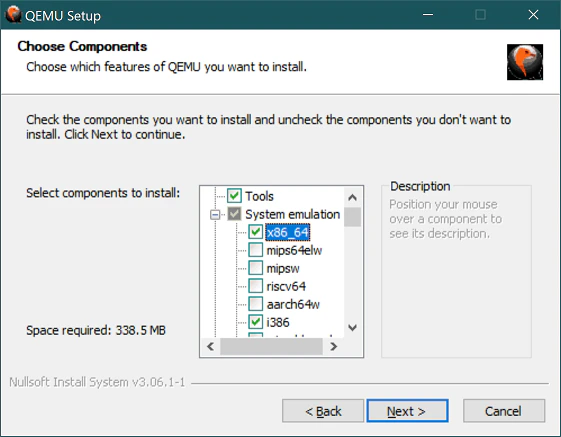
Download the latest QEMU binaries from [qemu.org](https://www.qemu.org/download/#windows)
During installation, select at minimum:
* **Tools**
* **System emulators** (i386 and x86\_64)
* **DLL libraries**
 ```bash theme={null}
Meta/serenity.sh run
```
## Hardware Acceleration
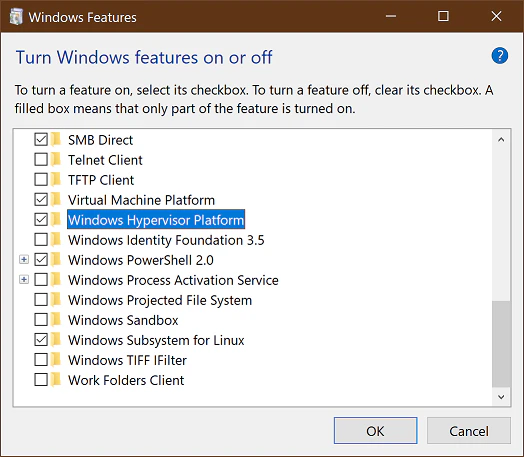
By default, QEMU runs in software virtualization mode, which is very slow. Enable hardware acceleration for better performance:
1. Open "Turn Windows features on or off"
2. Check **Windows Hypervisor Platform**
3. Click OK
```bash theme={null}
Meta/serenity.sh run
```
## Hardware Acceleration
By default, QEMU runs in software virtualization mode, which is very slow. Enable hardware acceleration for better performance:
1. Open "Turn Windows features on or off"
2. Check **Windows Hypervisor Platform**
3. Click OK
 Run in an elevated PowerShell session:
```powershell theme={null}
dism /Online /Enable-Feature /All /FeatureName:HypervisorPlatform
```
You may need to reboot after enabling WHPX.
QEMU will automatically use WHPX when available:
```bash theme={null}
Meta/serenity.sh run
```
## Advanced Filesystem Configuration
### Using Native Windows Partitions
For better QEMU performance, you can copy the disk image to a native Windows partition:
```bash theme={null}
# Copy disk image to Windows C: drive
cp Build/_disk_image /mnt/c/serenity/_disk_image
cp Build/Kernel/Kernel /mnt/c/serenity/Kernel
```
Then configure `SERENITY_DISK_IMAGE` to point to the Windows path (e.g., `D:\serenity\_disk_image`).
This avoids the 9P network filesystem overhead when accessing WSL2 files from Windows QEMU.
### WSL Network Path
The root of your WSL2 distribution is accessible from Windows at:
```
\\wsl$\{distro-name}
```
## Troubleshooting
### WSL Version Issues
If you're unsure about your WSL version:
```powershell theme={null}
# List distributions and versions
wsl -l -v
# Should show VERSION 2
```
### Performance Problems
If builds are very slow:
1. **Verify you're using Linux filesystem** (not `/mnt/c/`)
2. Check current directory:
```bash theme={null}
pwd
# Should be /home//... NOT /mnt/c/...
```
### QEMU Launch Failures
If QEMU doesn't start:
1. Verify QEMU is in Windows PATH
2. Check QEMU installation:
```powershell theme={null}
qemu-system-x86_64 --version
```
3. Ensure hardware acceleration is enabled
### File Permission Errors
If you encounter permission issues:
```bash theme={null}
# Fix executable permissions
chmod +x Meta/serenity.sh
chmod +x Toolchain/*.sh
```
## Best Practices
Always clone and build in `/home/` or `/root/`, never in `/mnt/c/` or other Windows mounts.
WHPX provides massive performance improvements. Always enable it.
Access your Linux files via `\\wsl$\` to use VS Code, Sublime, or other Windows editors.
Configure WSL2 memory and CPU limits in `.wslconfig`:
```ini theme={null}
[wsl2]
memory=8GB
processors=4
```
## Next Steps
Learn about the SuperBuild system
Explore CMake options and customization
Run in an elevated PowerShell session:
```powershell theme={null}
dism /Online /Enable-Feature /All /FeatureName:HypervisorPlatform
```
You may need to reboot after enabling WHPX.
QEMU will automatically use WHPX when available:
```bash theme={null}
Meta/serenity.sh run
```
## Advanced Filesystem Configuration
### Using Native Windows Partitions
For better QEMU performance, you can copy the disk image to a native Windows partition:
```bash theme={null}
# Copy disk image to Windows C: drive
cp Build/_disk_image /mnt/c/serenity/_disk_image
cp Build/Kernel/Kernel /mnt/c/serenity/Kernel
```
Then configure `SERENITY_DISK_IMAGE` to point to the Windows path (e.g., `D:\serenity\_disk_image`).
This avoids the 9P network filesystem overhead when accessing WSL2 files from Windows QEMU.
### WSL Network Path
The root of your WSL2 distribution is accessible from Windows at:
```
\\wsl$\{distro-name}
```
## Troubleshooting
### WSL Version Issues
If you're unsure about your WSL version:
```powershell theme={null}
# List distributions and versions
wsl -l -v
# Should show VERSION 2
```
### Performance Problems
If builds are very slow:
1. **Verify you're using Linux filesystem** (not `/mnt/c/`)
2. Check current directory:
```bash theme={null}
pwd
# Should be /home//... NOT /mnt/c/...
```
### QEMU Launch Failures
If QEMU doesn't start:
1. Verify QEMU is in Windows PATH
2. Check QEMU installation:
```powershell theme={null}
qemu-system-x86_64 --version
```
3. Ensure hardware acceleration is enabled
### File Permission Errors
If you encounter permission issues:
```bash theme={null}
# Fix executable permissions
chmod +x Meta/serenity.sh
chmod +x Toolchain/*.sh
```
## Best Practices
Always clone and build in `/home/` or `/root/`, never in `/mnt/c/` or other Windows mounts.
WHPX provides massive performance improvements. Always enable it.
Access your Linux files via `\\wsl$\` to use VS Code, Sublime, or other Windows editors.
Configure WSL2 memory and CPU limits in `.wslconfig`:
```ini theme={null}
[wsl2]
memory=8GB
processors=4
```
## Next Steps
Learn about the SuperBuild system
Explore CMake options and customization